

 Log in



How to Install the Avandrive Desktop Software
The following installation guide will help you to download and install the Avandrive Desktop Software on your device.
Installation Procedure
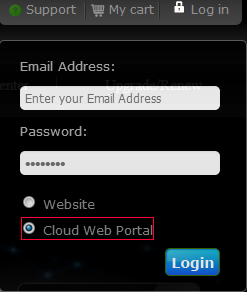
1) After the activation of your account navigate to Avandrive's website at www.avandrive.com and find the "Log in" button that is located on the top right corner of your screen.

2) Enter your username (email address) and password, choose the option "Cloud Web Portal" and click the "Login" button to be directed to your personal Cloud Web Portal.
3) You will notice on the right of your screen a green button to "Download as a Window Client" and a blue button to "Download as a Mac Client". Click on what best fits the description of your device.
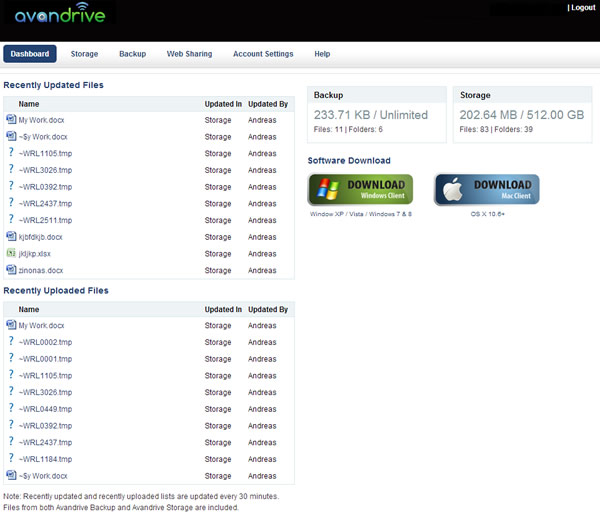
4) When the downloading process is completed click on Avandrive setup and get Avandrive Desktop Software up and running on your device in a few easy steps.


Note: You can click on the following link to find more information on How to install Avandrive on your PC or Mac in our knowledge base under the installation steps question.
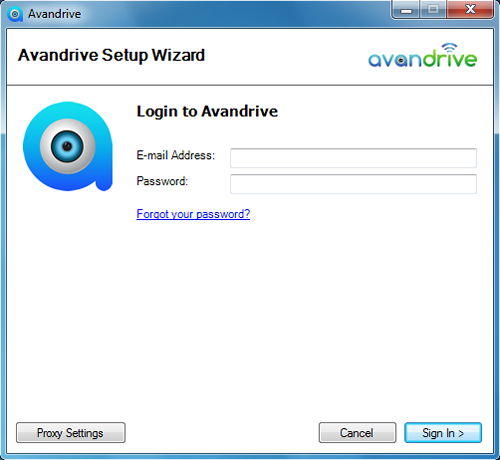
5) When you click on "Windows Setup" button the following window will appear. Enter your Avandrive username and password in order to proceed.
6) Wait a few moments while Avandrive is pre-synchronizng your device.
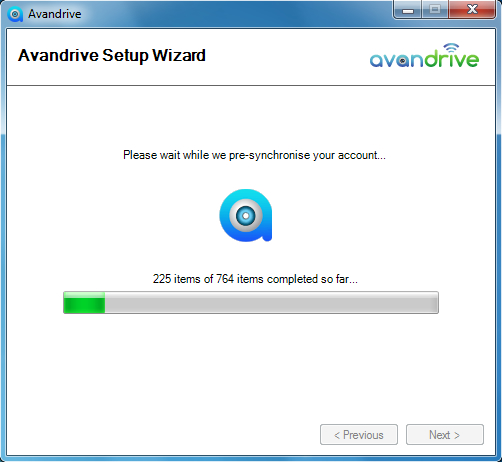
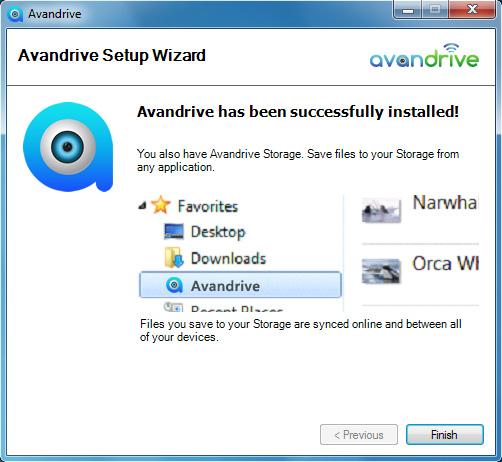
7) You will see a message that Avandrive has been successfully installed. Click on next to proceed.
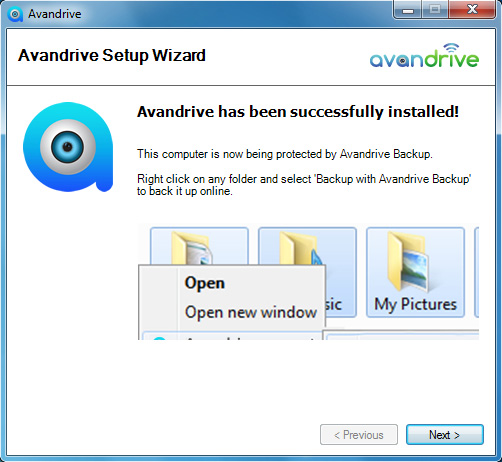
8) Click the "Finish" button and restart your computer in order to finish installing important updates.